
Calls
See incoming calls on the second phone. Enable call control on the Sender to answer, decline or dial through the Android SIM.
Bluetooth LE · End-to-end encryption
Answer calls, send texts and look up contacts on a nearby iPhone or Android phone using the SIM in your sending phone.
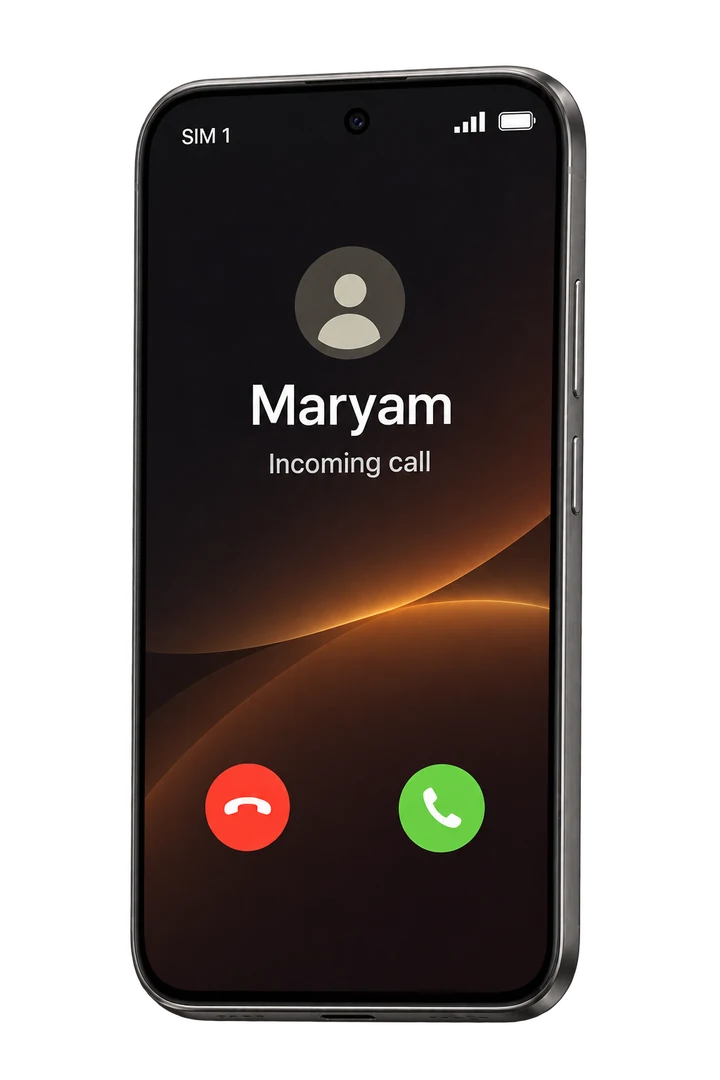
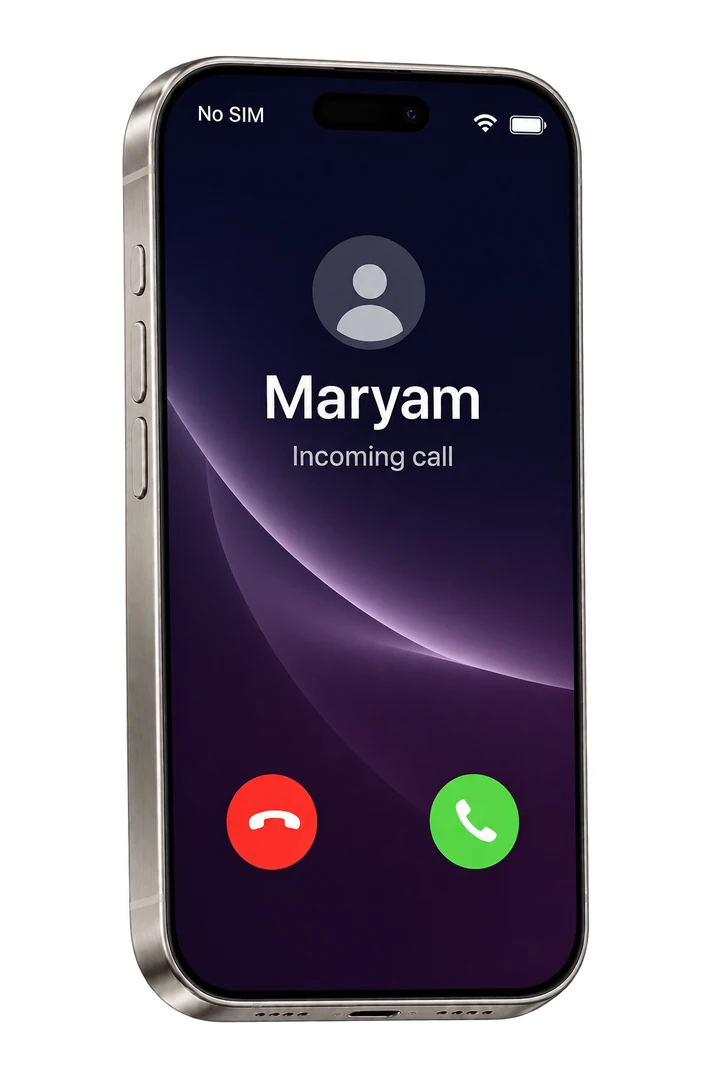
See incoming calls on the second phone. Enable call control on the Sender to answer, decline or dial through the Android SIM.
With your permission, ezcall copies names and phone numbers from the Sender into the receiving app.

From your second phone, turn the Android Sender’s mobile data and hotspot on or off together. Enable Allow Remote Network Control on the Sender and start the call audio component.
The paired phones exchange data over end-to-end encrypted Bluetooth. No relay server handles your calls, messages or contacts.
Install Sender on the Android phone with the SIM. On the second phone, install Receiver for Android 12+ or use ezcall for iPhone with iOS 17+.
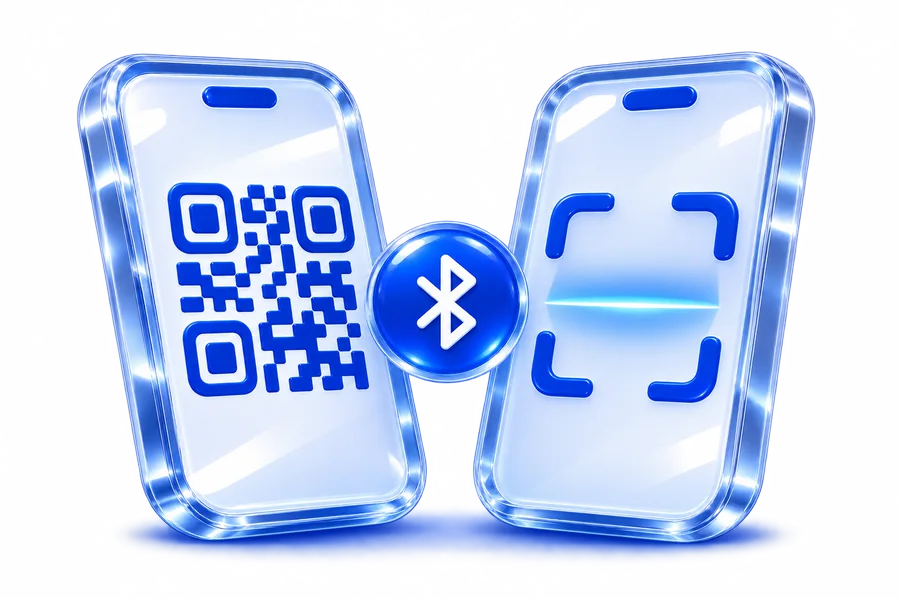
Enable Bluetooth on both phones. Tap Start pairing on the Sender, then tap Scan QR code on the receiving phone. Keep both apps open.
Tap Test connection on the receiver. Choose which call, SMS and contact features to share on the Sender and grant their individual permissions.
To hear calls on the receiver, choose one of these methods on the sending Android phone. The phones pair by QR and relay audio over Bluetooth.
 ShizukuUse Shizuku on the Sender
USB debuggingUse a data cable and a computer
Connect to Wi-Fi. On most Android phones, tap Build number seven times under About phone to enable Developer options. In ezcall, go to Settings → Call audio → Audio setup methods → Wireless debugging. In the prompt, tap Open Developer options and allow notifications if asked.
In Developer options, turn on Wireless debugging and tap Pair device with pairing code. Keep the code window open.
Pull down notifications, tap Enter code in the ezcall notification and enter the six digits. If the port is missing, enter the code and port from the same window, for example 123456:37811. Return to ezcall and tap Set up call audio.
After setup, ezcall shows whether the phone supports two-way or listen-only call audio. To revoke ezcall’s authorization, remove it from Paired devices under Wireless debugging.
Android developer options guideInstall Shizuku 13 or later on the Sender. For wireless startup, enable Wireless debugging, tap Pairing in Shizuku and enter the Android pairing code in Shizuku’s notification. Return to Shizuku and tap Start.
Open Settings → Call audio → Audio setup methods → Set up with Shizuku in ezcall, then allow ezcall in the Shizuku prompt.
Start Shizuku again after rebooting. If call audio has stopped, tap Restart with Shizuku in ezcall.
After setup, ezcall shows whether the phone supports two-way or listen-only call audio. If you denied the prompt, allow ezcall under Authorized applications in Shizuku.
Official Shizuku setup guideEnable USB debugging in Developer options. Connect the Sender to your computer with a data cable and approve the debugging request on the phone.
In ezcall, open Settings → Call audio → Audio setup methods → USB. Keep the setup dialog open and run the command shown by ezcall with Android Platform-Tools within two minutes.
Unplug the cable once ezcall shows the call-audio status. Repeat USB setup after rebooting the phone or if call audio stops.
After setup, ezcall shows whether the phone supports two-way or listen-only call audio. If several devices are connected, run adb devices and replace -d in the ezcall command with -s SERIAL for the Sender.
Install Sender on the Android phone with your SIM and Receiver on the second phone. The Sender needs BLE peripheral advertising.
Android 12 or later
Receiver · iOS 17 or later
Contributions are optional. All features stay free.
TU9wqZRsxcMUsMiButMX9awBg8zxZWA7Mq
0xFe8aa49dC021c8ceF13f19006aC1f526CA413b1e
When sending a contribution, select the network shown for that wallet.
The Sender and both receivers are MIT-licensed. Find the build instructions and Bluetooth protocol in the repository.
When reporting a problem, include both phone models and app versions. Leave out phone numbers, messages and pairing codes.
Use Android 12+ with BLE peripheral advertising as the Sender. Use an iPhone with iOS 17+ or a second Android phone with Android 12+ as the receiver.
Enable Bluetooth, open the pairing QR on the Sender and scan it inside the receiver. Run Test connection on the receiver. Pairing steps · Wireless debugging guide
Pairing and everyday relay use Bluetooth and require no internet connection or account. The Wireless debugging method for optional call audio uses Wi-Fi. See all call-audio setup methods.
The relay tries to reconnect when the phones are nearby again. Call alerts require a live connection while the phone rings. You can sync recent SMS after reconnecting.
Only the Android Sender needs an active SIM for carrier calls and texts.
Enable Call control on the Sender to answer, decline or dial. For audio on the receiver, complete the call-audio setup. Two-way audio depends on the Android handset. In listen-only mode, speak into the Sender.
The pairing QR authenticates the devices. Every session uses fresh keys and AES-256-GCM encryption. Show the QR only to a phone you trust.
ezcall supports calls, SMS and contact sync. File transfer is outside its supported features.